Two-factor authentication
Password, two-step sign-in, notifications, language and appearance.
Two-factor authentication
Add a second step to signing in with a code from an authenticator app.
With two-factor authentication (2FA) on, signing in needs your password and a 6-digit code from an authenticator app on your phone, such as Google Authenticator, Microsoft Authenticator or Authy. We recommend it for church staff, who can see more information.
Turn it on
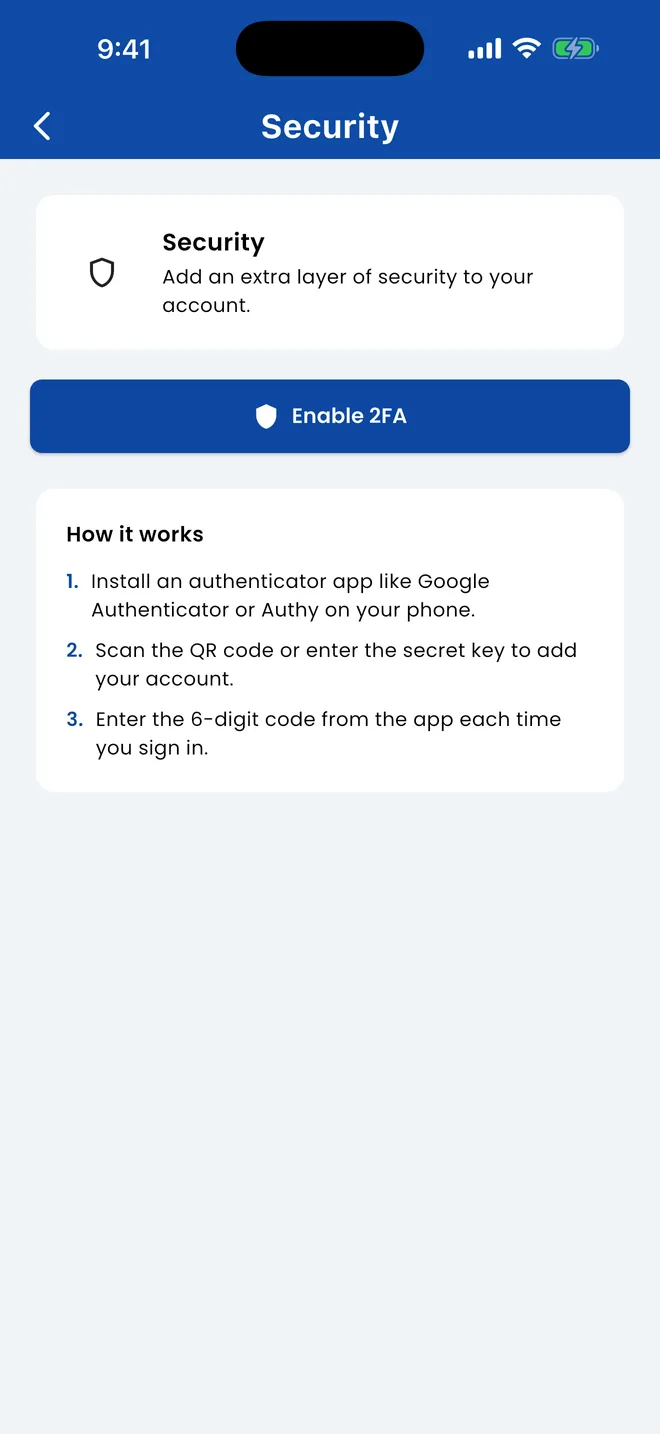
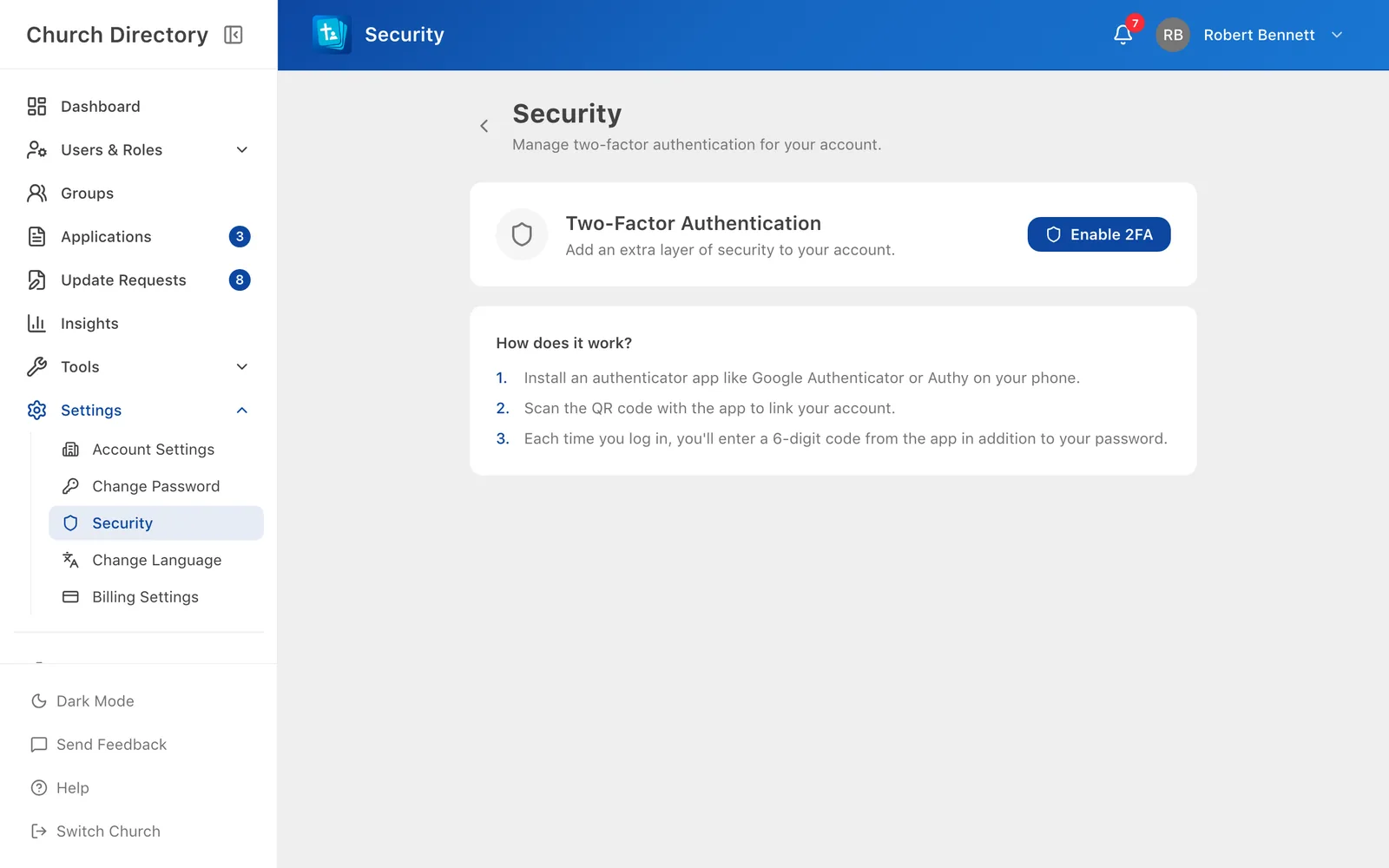
- Open the menu › Settings › SecurityIn the sidebar, open Settings › Security and choose Enable 2FA.
- In your authenticator app, add an account and scan the QR code. If you can't scan it, type in the key shown below it.
- Enter the 6-digit code the authenticator app shows, and confirm.
- Save your backup codes. Copy them somewhere safe, such as a password manager. Each one can be used once if you lose your phone.
Signing in with 2FA
After your password, enter the current code from your authenticator app and choose Verify. Lost your phone? Choose Use a backup code instead and enter one of your saved codes.
Running out of backup codes
The Security screen shows how many backup codes you have left. To get a fresh set, turn 2FA off and on again.
Turn it off
On the Security screen, choose Disable and enter your password.
Locked out completely?
If you've lost both your phone and your backup codes, contact your church office or email directory@verionlabs.com.
Related Articles
Was this article helpful?
Thank you for your feedback!