Update your profile
Your own directory entry and who can see it.
Update your profile
Fix a phone number, add a new address or change your photo. Most churches review changes before they appear.
How you change your details depends on your role:
- Most members send a request. Church staff review it, and the change appears once they approve it.
- Staff who can edit people change their details straight away.
Request a change to your profile
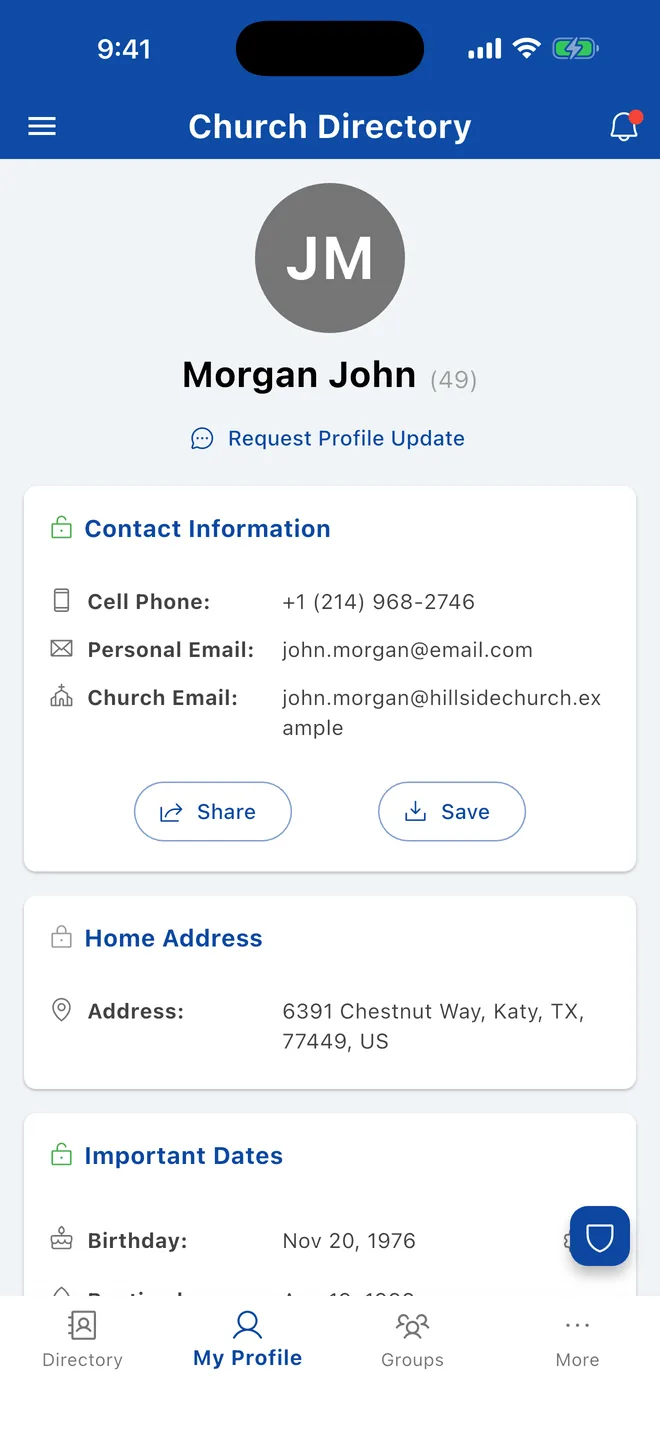
- Open My Profile and tap Request Profile Update under your name.
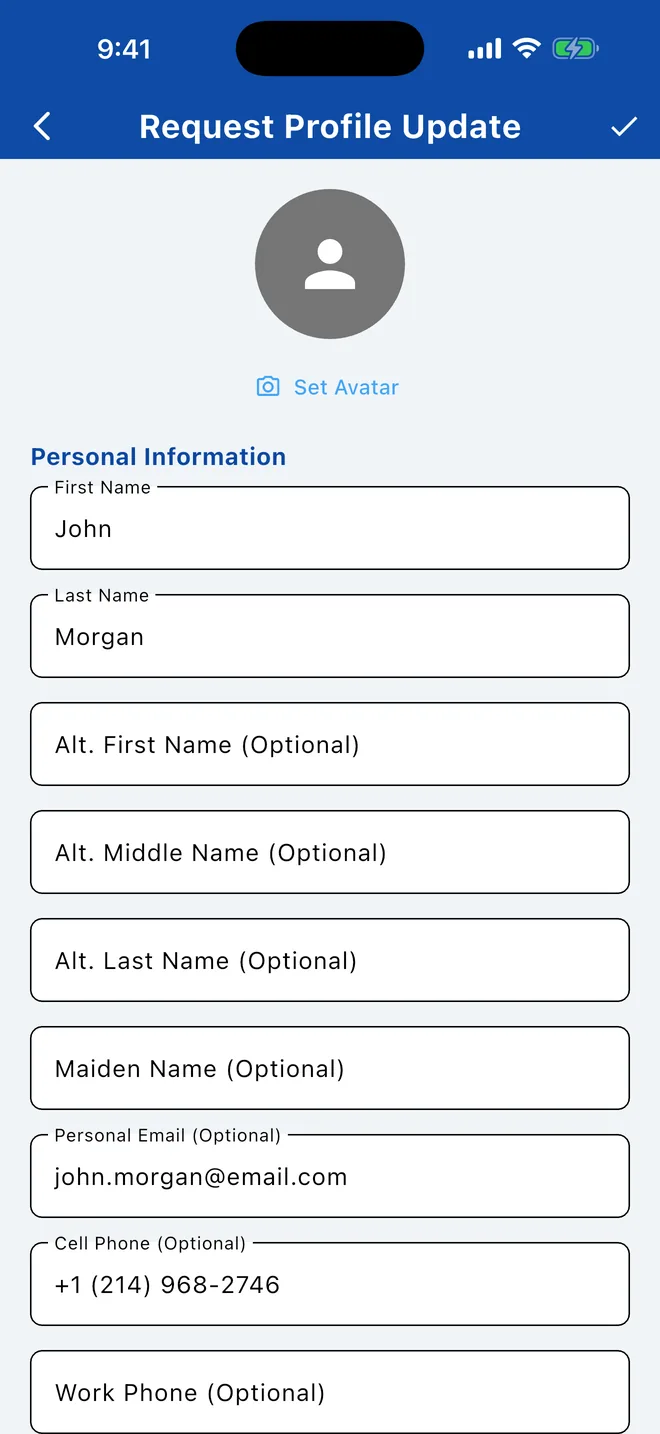
- Change what you need: phone, email, address, dates, employment or photo.
- Tap ✓ at the top right (Submit Request).
- Open My Profile and click Edit.
- A banner explains that your changes go to an administrator for review. Make your changes.
- Click Submit for Approval.
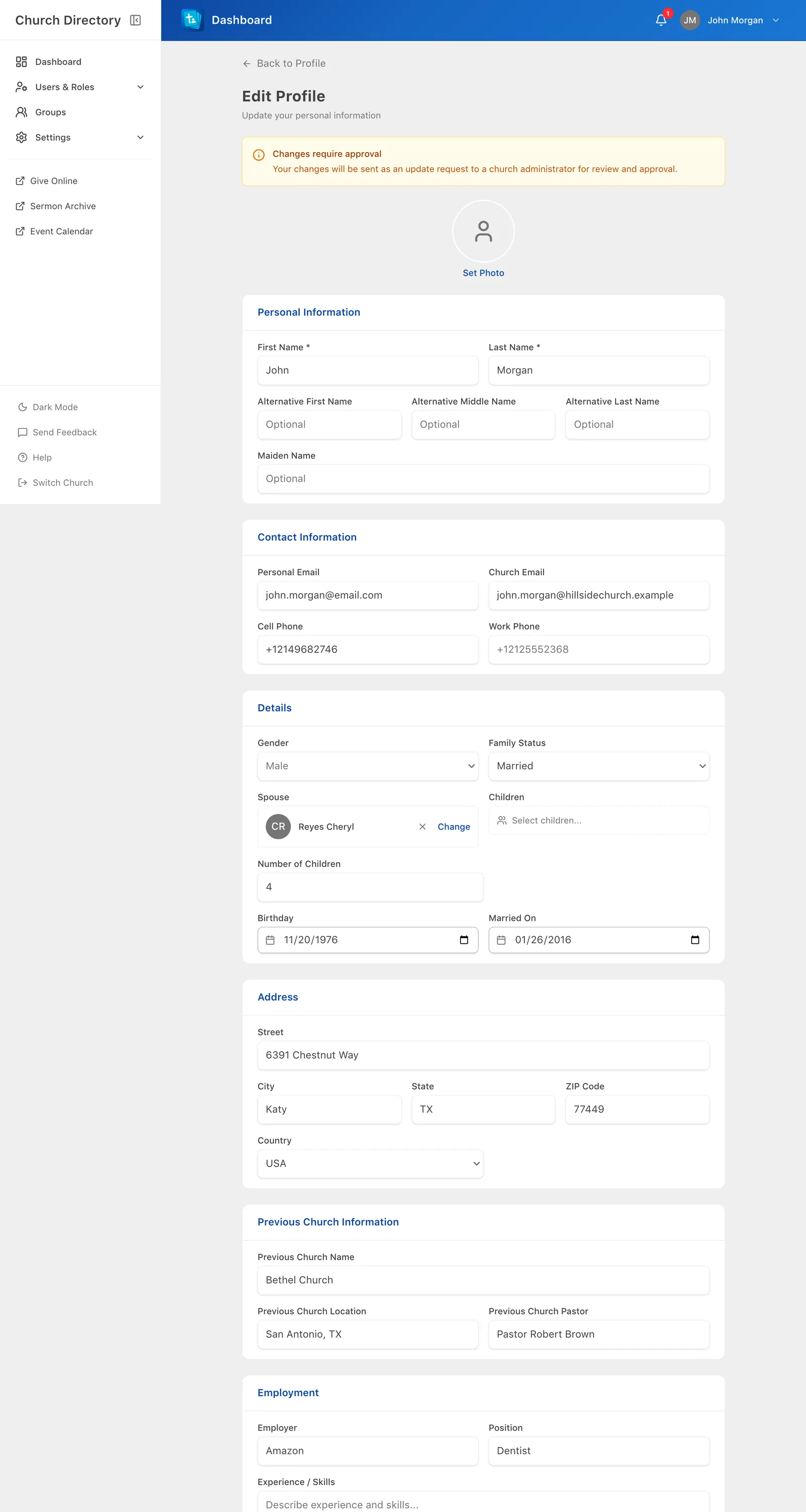
Only the fields you changed are sent. You'll get a notification when your request is approved or declined. A declined request may include a note from staff explaining why.
Suggest a correction for someone else
If your church allows it, open the person, tap ⋮ and choose Request Profile Update. It works the same way. Members can also suggest a new family photo for their own family.
Suggesting changes to someone else's details is only available in the mobile app.
If you can edit directly
Staff with permission to edit people see Edit profile (mobile) or Save Changes (web) instead, and changes apply immediately. See Edit people.
Related Articles
Was this article helpful?
Thank you for your feedback!