Language and dark mode
Password, two-step sign-in, notifications, language and appearance.
Language and dark mode
Use the app in English, Spanish, Russian or Ukrainian, and switch between light and dark mode.
Language
Available languages: English, Español, Русский and Українська.
Open the menu › Settings › Change Language, pick a language and tap Confirm.
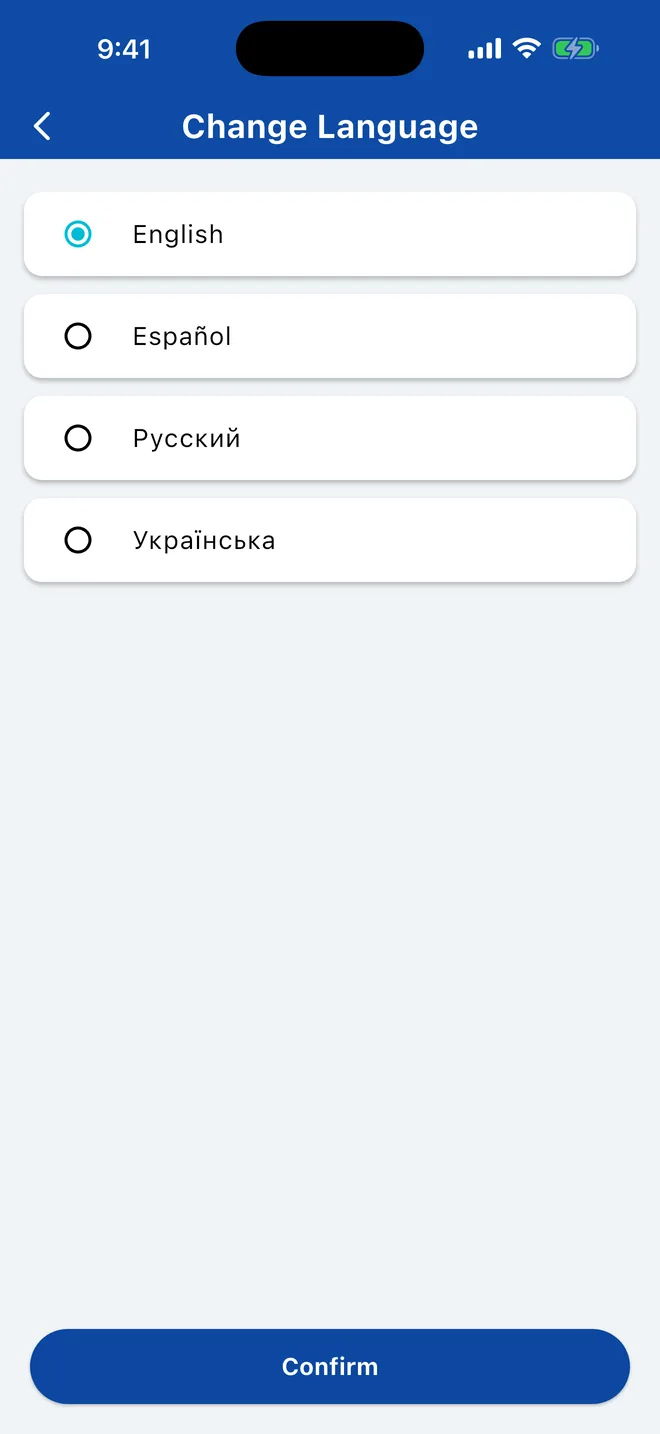
In the sidebar, open Settings › Change Language, pick a language and click Confirm. The web app remembers your choice in this browser only, so set it again on another computer.
A few newer screens may still appear partly in English while translations are completed. Names and details your church entered are shown as they were typed.
Light and dark mode
At the bottom of the side menu, tap the appearance button. Each tap switches between System (follow your phone's setting), Light Mode and Dark Mode.
Click Dark Mode / Light Mode at the bottom of the sidebar, or choose Light, Dark or System under Appearance in Settings.
Related Articles
Was this article helpful?
Thank you for your feedback!