Birthdays and reminders
Your own directory entry and who can see it.
Birthdays and reminders
Choose whether others see your birthday, and get a notification on the birthdays you care about.
Your own birthday: who sees it
On My Profile, tap the gear next to your birthday. In Birthday Visibility:
- Make birthday public: lets members see the day and month.
- Show birth year and age: also shows the year.
On My Profile, under Visibility Settings:
- Show birthday to others: lets members see the day and month.
- Show birth year: also shows the year (only available when the first switch is on).
Church staff can always see birthdays. Your church needs your birthday to verify you when you set up your account, even if you hide it.
Get reminded on someone's birthday
- Open the person's details.
- Tap or click the bell next to their birthday. Confirm when asked. It turns on straight away.
You'll get a notification on the day. Tap the bell again to stop.
Make sure notifications are allowed for the app in your phone's settings, or reminders won't appear.
See and manage your reminders
Open the menu › Settings › Notification Settings › Birthday Notifications. The Birthday Reminders switch pauses all of them; the list below shows each person you follow, so you can remove one.
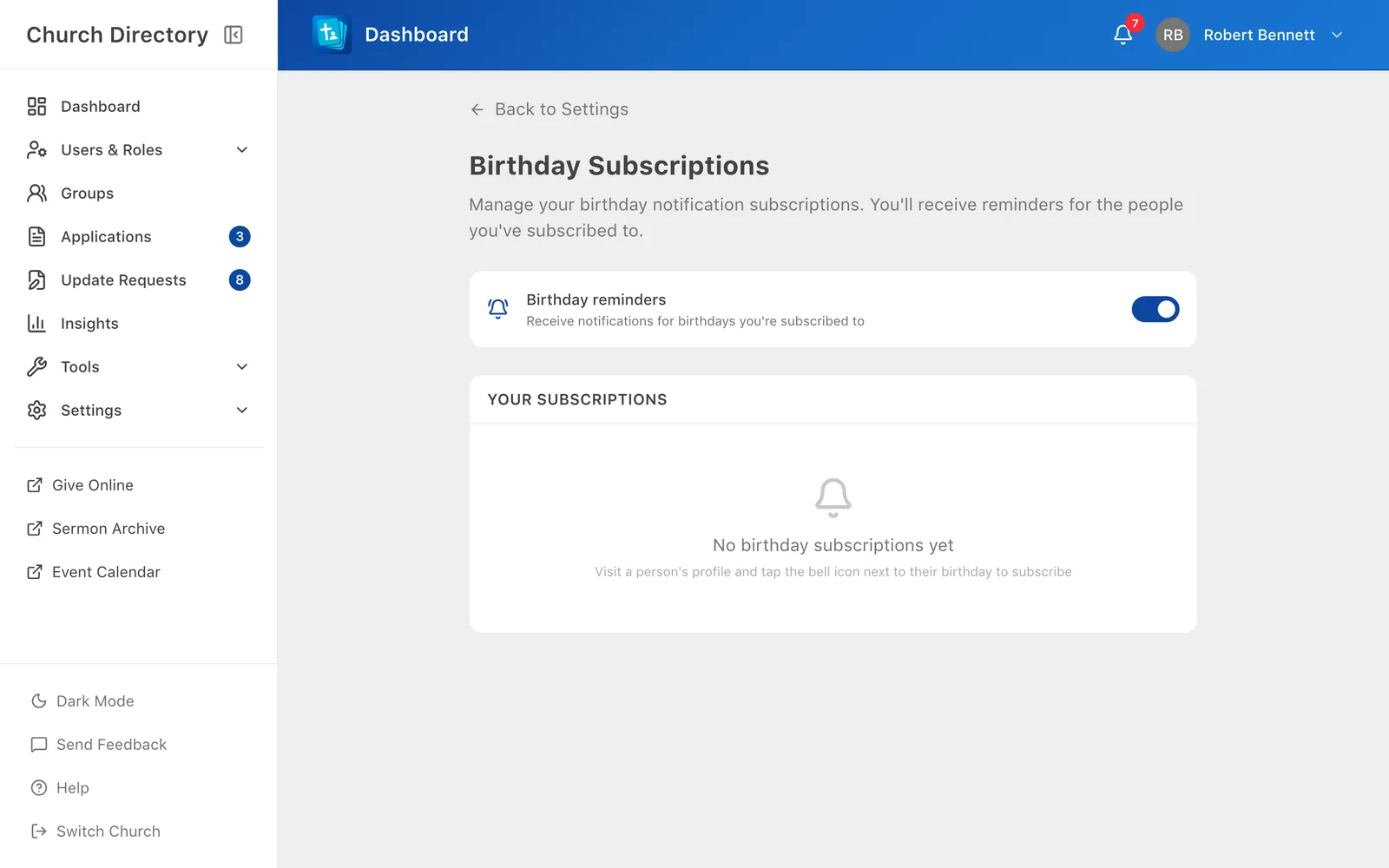
Go to Settings (click your name › Settings) and click Manage birthday subscriptions. The Birthday reminders switch pauses all of them; Your Subscriptions lists each person you follow.
For staff: this month's birthdays and anniversaries
On the dashboard, the Birthdays Today and Anniversaries Today cards open lists of everyone celebrating this month. See Dashboard and insights.
Related Articles
Was this article helpful?
Thank you for your feedback!