Approve profile update requests
For church staff: add, edit, import and export people, and review requests.
Approve profile update requests
Review the changes members ask for, field by field, and approve or decline them.
When members request a change to their details, it waits for staff with the right permission to review it.
Find waiting requests
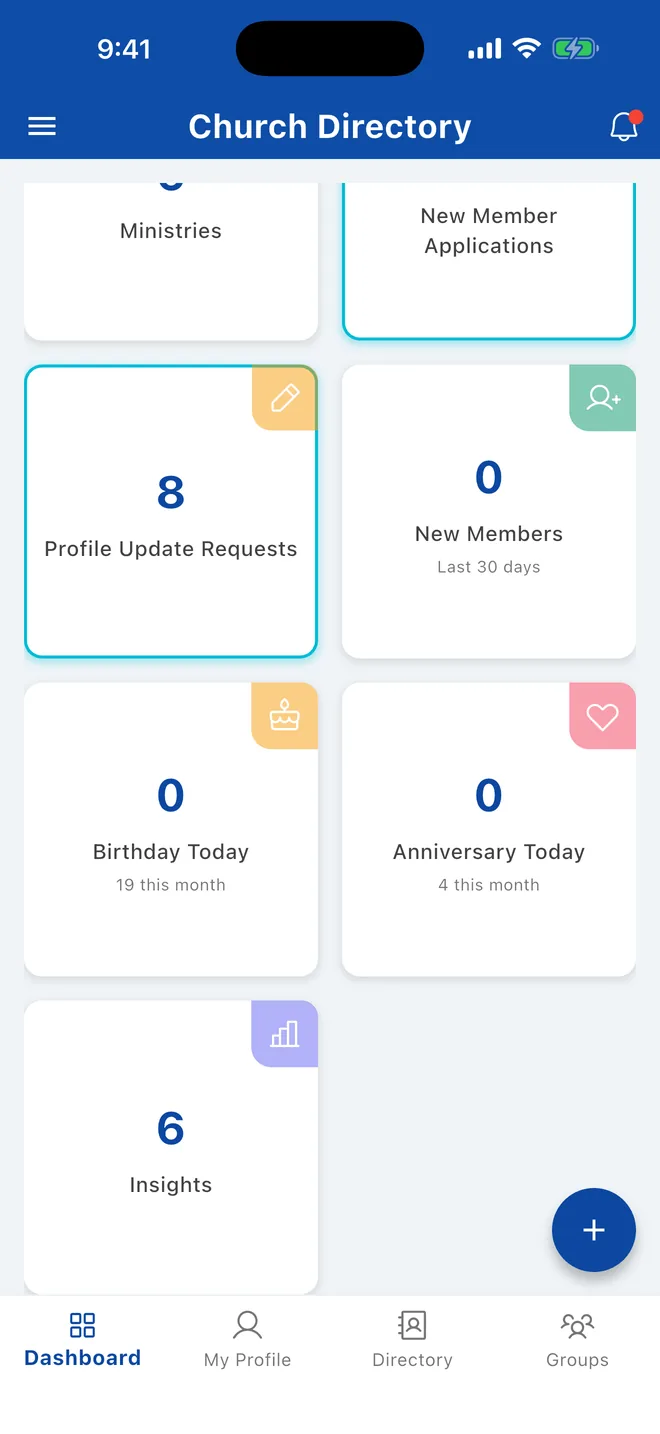
On the Dashboard, tap Profile Update Requests. Tapping the notification for a new request also brings you here.
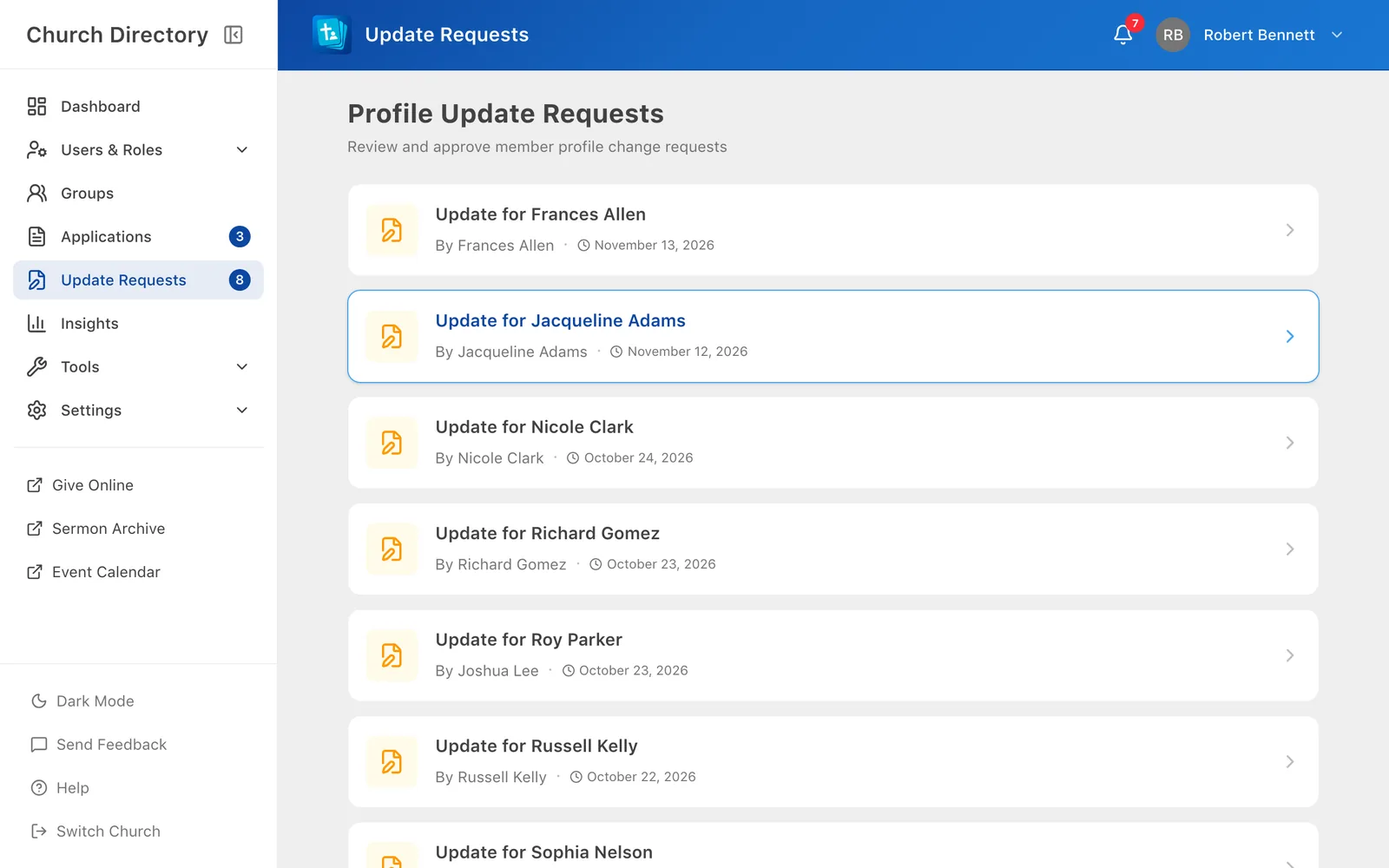
Click Update Requests in the sidebar, or Profile Update Requests under Quick Actions on the dashboard.
Review a request
- Open a request. You'll see who it's for, who asked, any note from them, and each changed field as original → requested, including photos.
- Optionally add a note for the member.
- Choose Approve to apply the change, or Decline. If you decline without a note you'll be asked to confirm; a short explanation helps the member.
The member is notified either way. If only part of a request is right, decline it with a note, or approve it and then edit the person to fix the rest.
Related Articles
Edit or remove people
Update someone's details, notes, groups or role, or remove them from the directory.
Managing PeopleUpdate your profile
Fix a phone number, add a new address or change your photo. Most churches review changes before they appear.
Your ProfileNotifications
Choose which notifications you get, and see the ones you've received.
Account & SettingsWas this article helpful?
Thank you for your feedback!