Finding your way around
Install the app or open it on the web, find your church and sign in.
Finding your way around
Where everything lives: tabs and menu in the mobile app, the sidebar on the web.
Tabs at the bottom
What you see depends on your role.
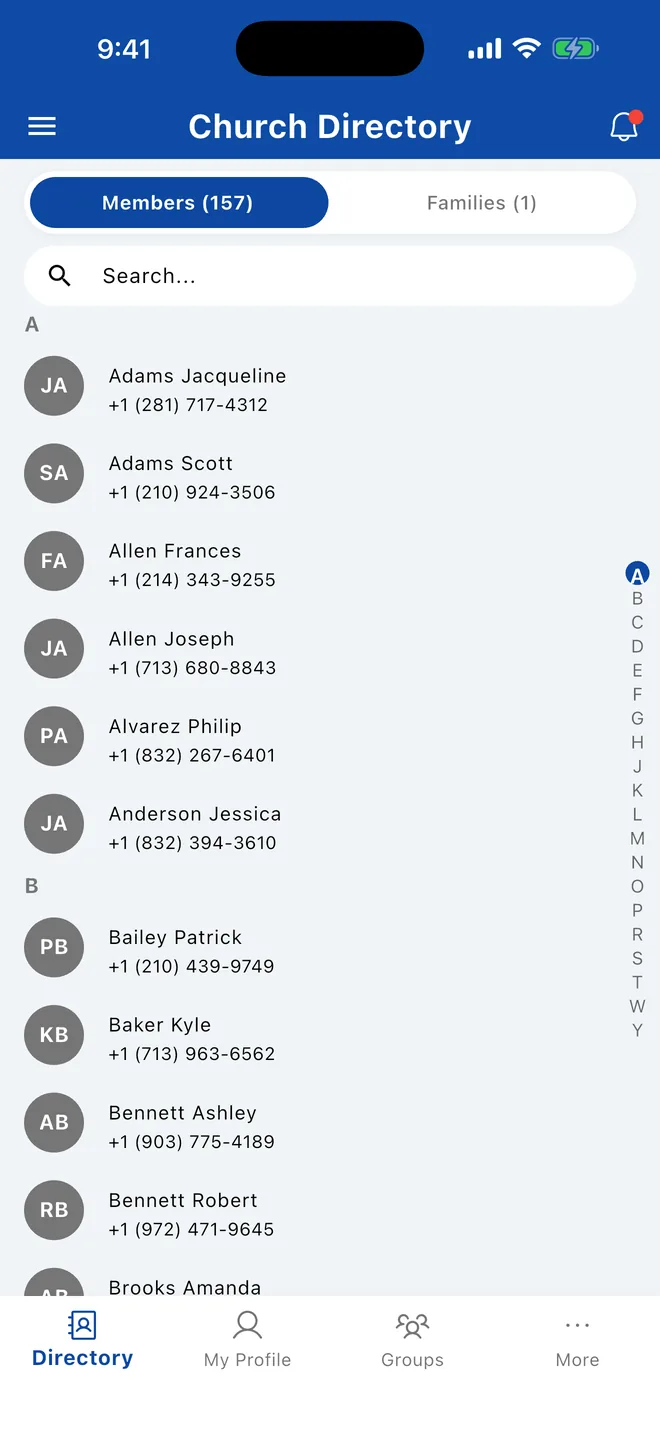
- Members see Directory, My Profile, Groups and More. Groups only appears if you belong to a group. More opens the side menu.
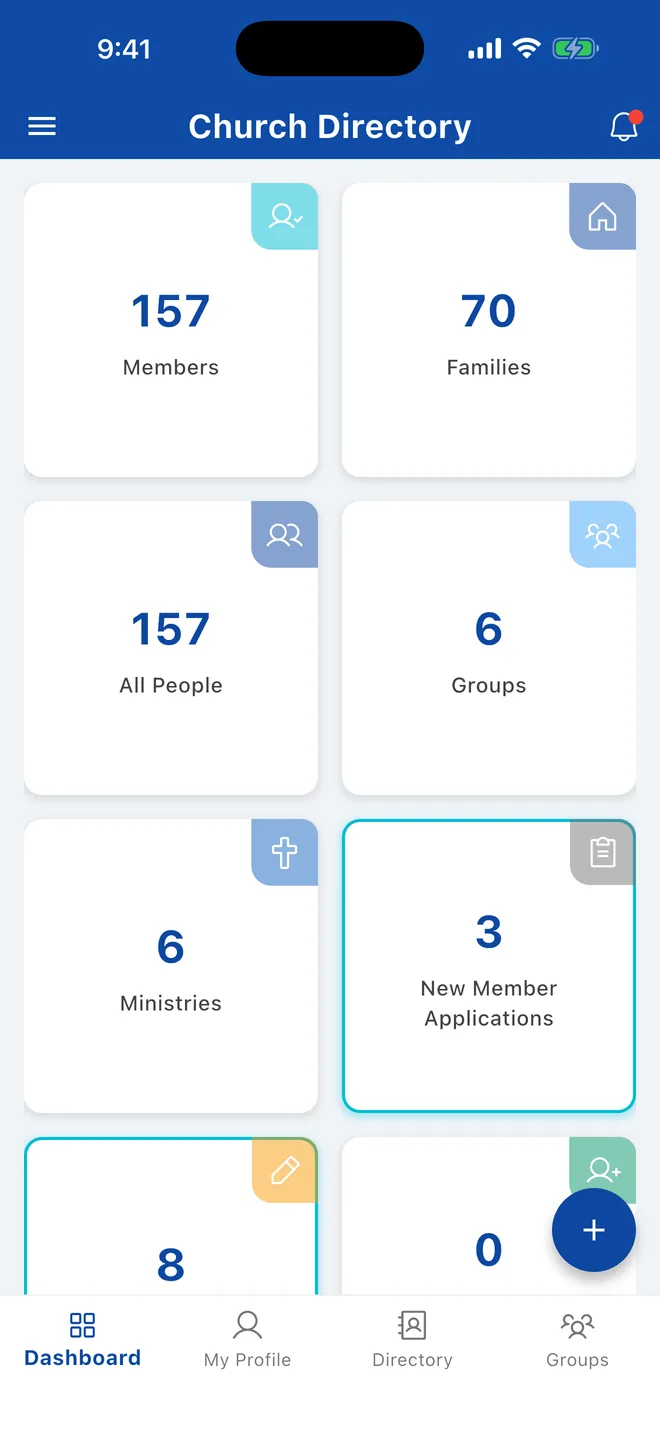
- Church staff with dashboard access see Dashboard, My Profile, Directory and Groups, plus a round + button for adding people and groups. Open the side menu with the ☰ button at the top left.
The side menu
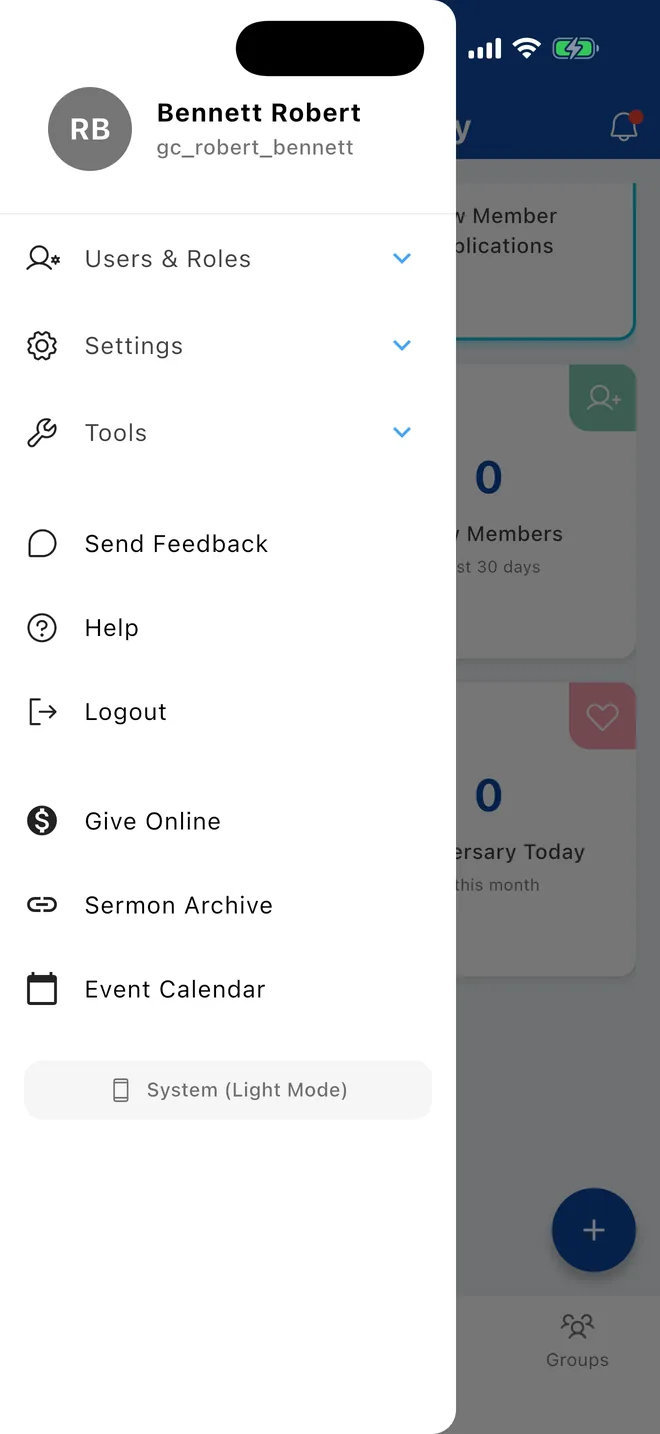
Tap your name at the top to open your profile. Below it:
- Settings: Change Password, Security (two-factor sign-in), Notification Settings, Change Language. Staff may also see Account Settings and Billing Settings.
- Users & Roles and Tools appear for staff only.
- Send Feedback, Help and Logout.
- Links your church added, such as online giving or an events calendar.
- The appearance switch at the bottom cycles between System, Light and Dark mode.
Notifications
The bell at the top right opens your notifications. A red dot means there's something unread, or that notifications are turned off for the app on your phone.
Keeping the directory up to date
The app keeps a copy of the directory on your phone, so you can look people up with a weak signal. Pull down on the directory or groups list to fetch the latest changes.
The sidebar
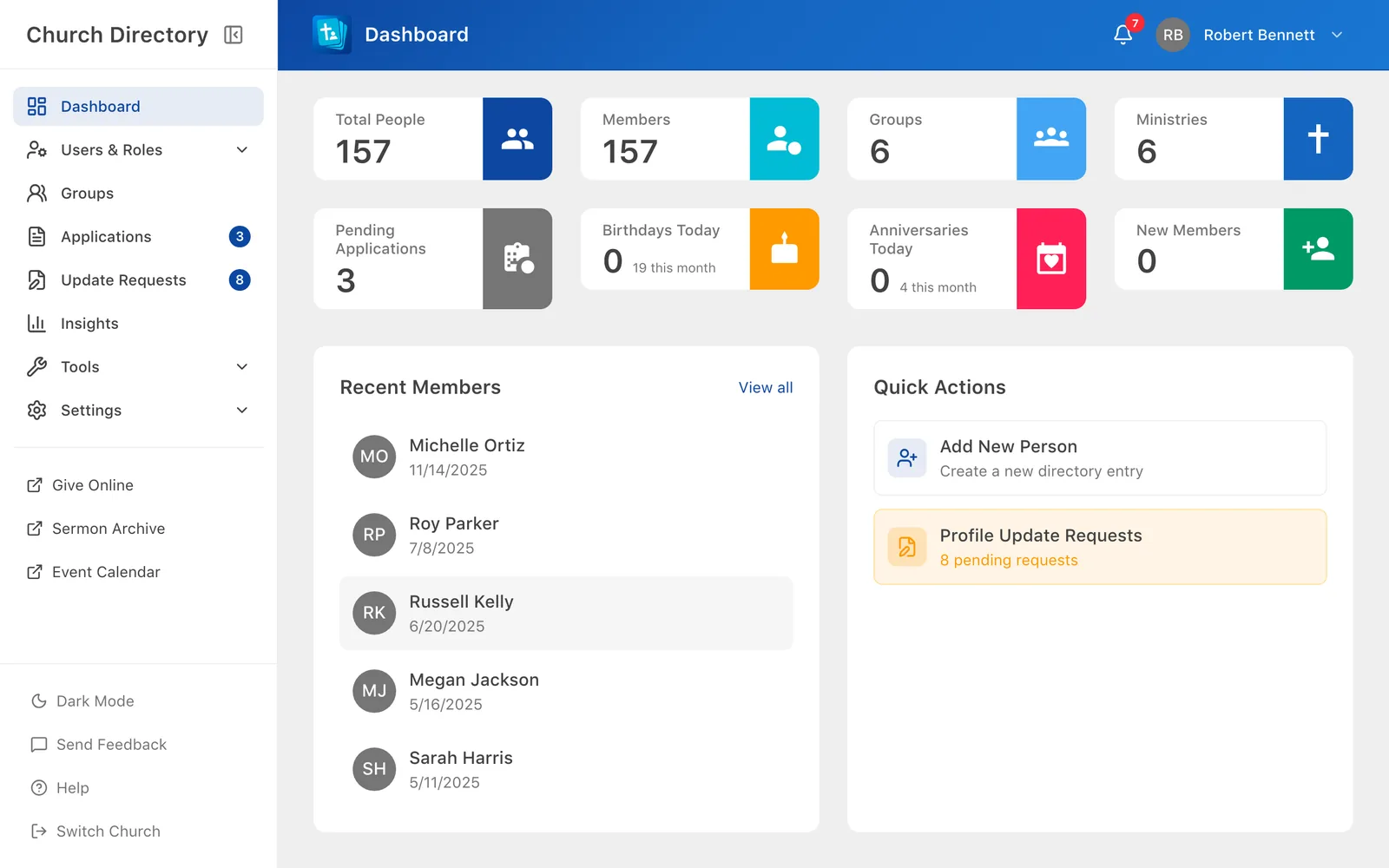
Everything is in the sidebar on the left. Items you don't have permission for are hidden.
- Dashboard: your home page. Staff see church statistics and shortcuts.
- Users & Roles › Users: the directory. Staff also see Roles & Permissions.
- Groups.
- Applications, Update Requests and Insights for staff. The number badges show items waiting for review.
- Tools: Action Logs, Export Data, Bulk Import.
- Settings: Change Password, Security, Change Language, and for staff Account Settings and Billing Settings.
- Links your church added, such as online giving.
- At the bottom: Dark Mode, Send Feedback, Help and Switch Church.
Use the button next to Church Directory at the top of the sidebar to hide it and get more room.
The top bar
- The bell shows your notifications. Use Mark all as read to clear them.
- Click your name for My Profile, Settings and Sign out.
Related Articles
Was this article helpful?
Thank you for your feedback!