Export data
For church staff: add, edit, import and export people, and review requests.
Export data
Download people, groups or roles as a spreadsheet for mailings, reports or backups.
Exports are CSV files, which open in Excel, Numbers or Google Sheets. You need export permission. Exports only include information your role is allowed to see.
Export everything
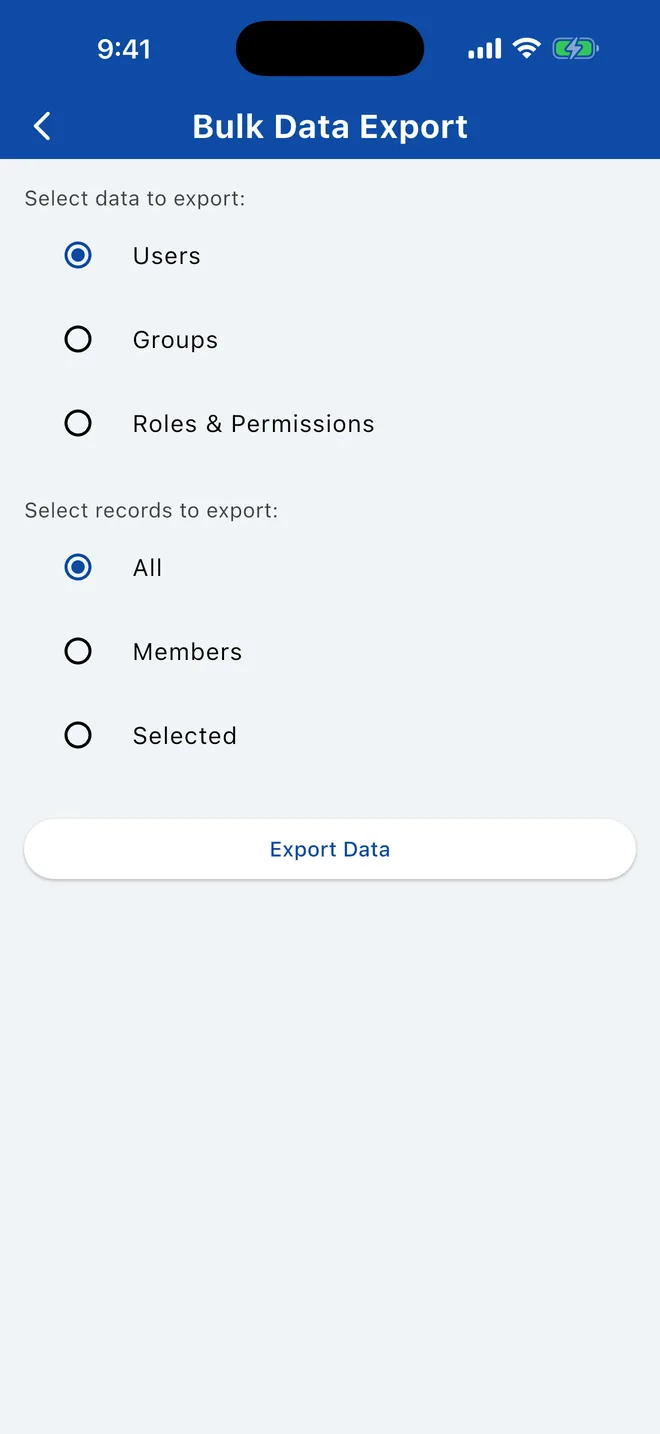
- Open the menu › Tools › Export Data.
- Choose what to export: Users, Groups or Roles & Permissions.
- For users, choose All, Members or Selected people.
- Tap Export Data and choose where to save or send the file.
Export a search or filter
In the directory, search or filter the list. An Export button with the number of results appears; tap it to export just those people.
Export
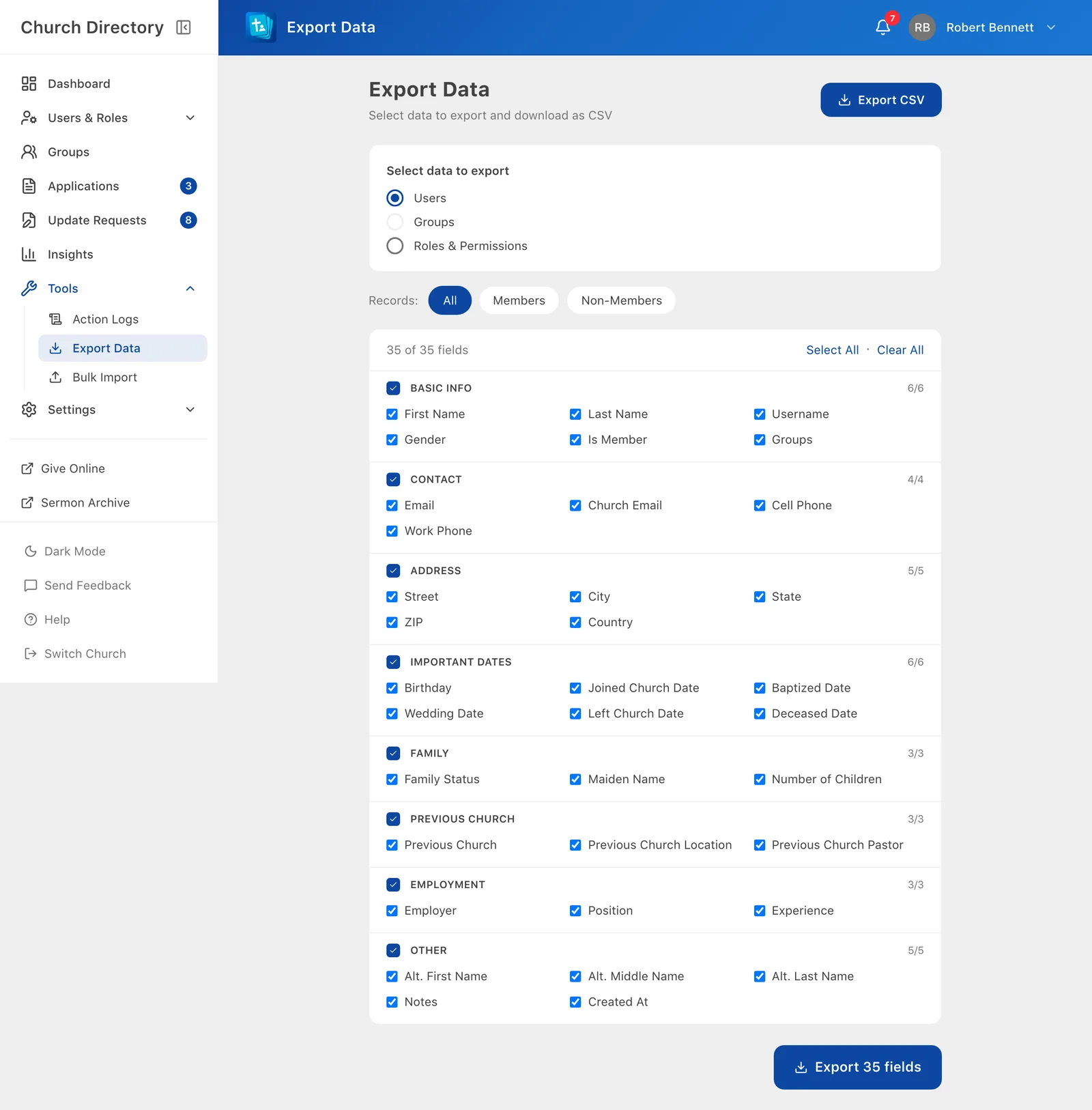
- In the sidebar, open Tools › Export Data.
- Choose what to export:
- Users: all, members only or non-members only, and which groups of fields to include (basic info, contact, address, dates, family, previous church, employment, other).
- Groups: all or selected groups, one row per person with their role in the group.
- Roles & Permissions: every role, its permissions and its people.
- Click export. The file downloads to your computer.
One group's members
Group leaders can export their own group's list, even without export permission. See Groups.
Related Articles
Groups and ministries
See the groups you belong to, who leads them, and who's in them.
GroupsFilter the directory
Narrow the list by gender, family status, role, group, age, location and more.
DirectoryImport people from a spreadsheet
Add your whole congregation at once from a CSV file exported from Excel, Google Sheets or your old church software.
Managing PeopleWas this article helpful?
Thank you for your feedback!