Import people from a spreadsheet
For church staff: add, edit, import and export people, and review requests.
Import people from a spreadsheet
Add your whole congregation at once from a CSV file exported from Excel, Google Sheets or your old church software.
1. Prepare your file
- The file must be CSV (UTF-8), up to 5 MB. In Excel use File › Save As › CSV UTF-8; in Google Sheets use File › Download › Comma-separated values. Excel (.xlsx) files can't be uploaded directly.
- First row: column names. Then one row per person.
- Each row needs at least a first or last name. Everything else is optional.
- Include Cell Phone and Birthday so people can set up their accounts.
| Column | Accepted values |
|---|---|
| Birthday and other dates (Joined Church Date, Baptized Date, Wedding Date, Left Church Date, Deceased Date) | 1985-04-12, 04/12/1985, 04-12-1985, 04/12/85, 1985/04/12. Dates in other formats are skipped, so check them after importing. |
| Cell Phone, Work Phone | Any common US format, such as (555) 010-0101 |
| Gender | male, m, female, f |
| Family Status | single, married, divorced, separated, widowed |
| Address | Separate columns: Street, City, State, ZIP, Country |
Other columns you can include: Email, Church Email, Alt. First/Middle/Last Name, Maiden Name, Number of Children, Previous Church, Previous Church Location, Previous Church Pastor, Employer, Position, Experience, Notes.
2. Upload and match columns
- Open the menu › Tools › Bulk Import and tap Select CSV File.
- Check each column is matched to the right field. Choose Do Not Import for columns you don't want.
- Optionally choose a role for everyone, such as Member.
- Tap Next: Review & Confirm, then Start Import. Keep the app open until it finishes.
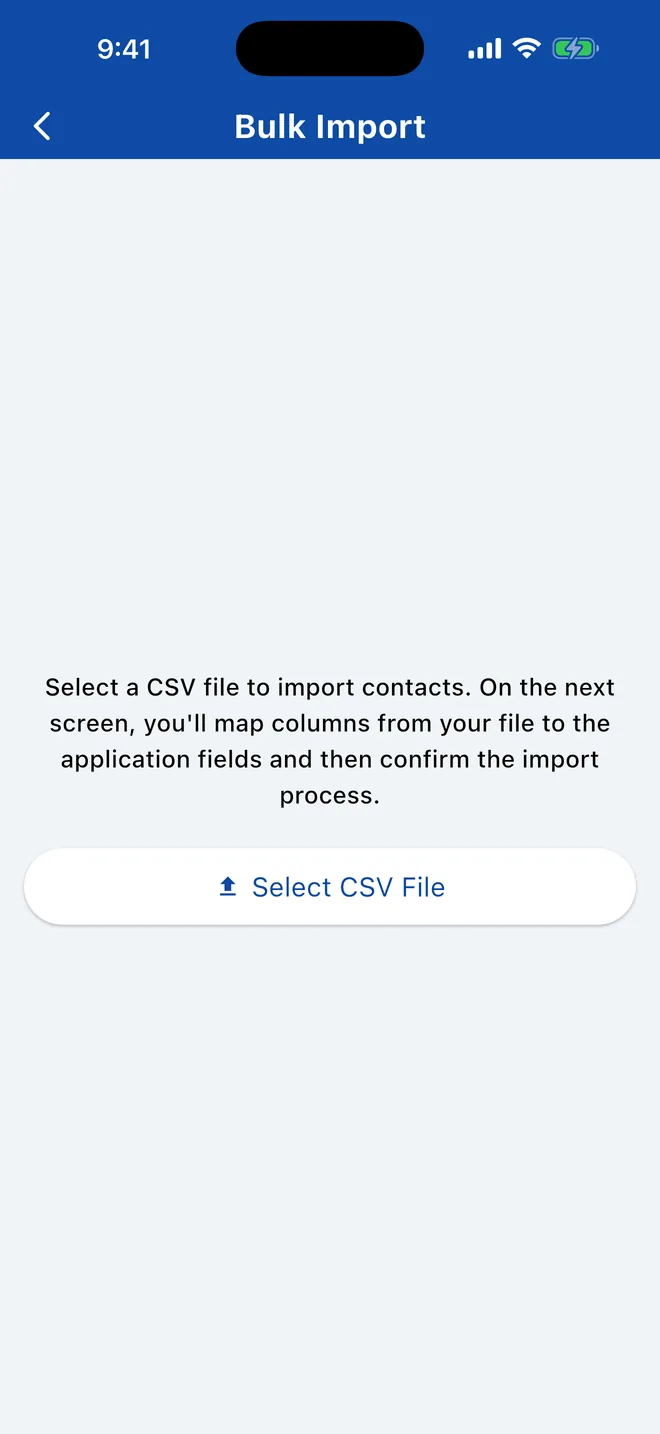
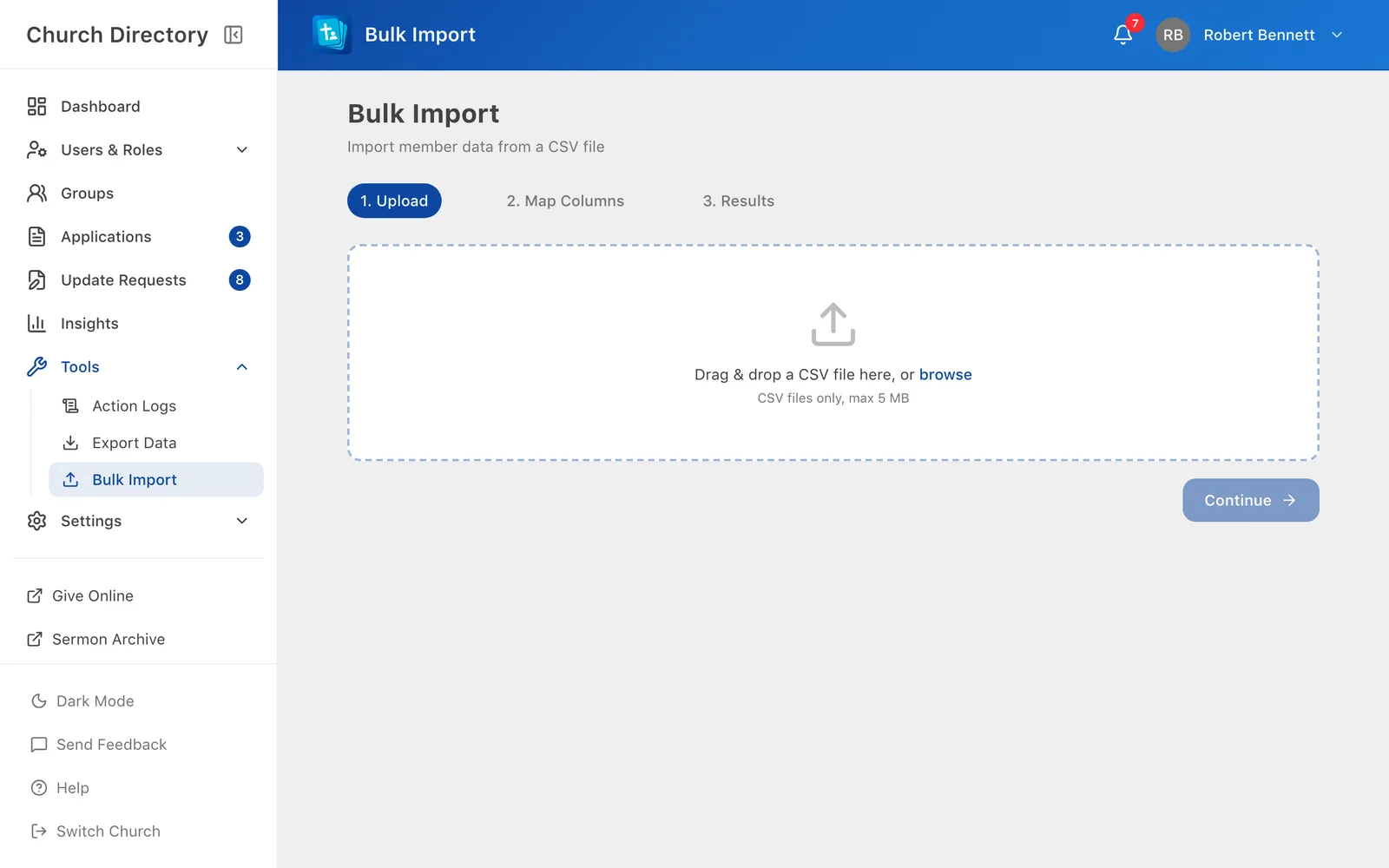
- In the sidebar, open Tools › Bulk Import and choose your file.
- Check each column is matched to the right field, or set it to — Skip —. The first 5 rows are previewed.
- Optionally choose Assign role to all imported users, such as Member.
- Click Import N people.
3. Check the results
You'll see how many people were created and which rows failed, with the reason. Fix those rows in your spreadsheet and import just them again. The import doesn't check for duplicates, so don't re-import rows that succeeded.
If the file would take you over your plan's people limit, nothing is imported and you're told how many more people you can add. See Billing.
Afterwards
- Spouses and children aren't linked by the import. Link them by editing one person in each family.
- Add people to groups.
- Invite your members.
Related Articles
Was this article helpful?
Thank you for your feedback!