Roles and permissions
For church administrators: dashboard, insights, roles, settings and billing.
Roles and permissions
Decide who can see and change what by giving people roles, each with its own set of permissions.
Every person has one or more roles. Each role is a set of permissions, and a person can do anything any of their roles allows. New churches start with Admin (everything), Deacon and Member. See Who can see what for the defaults.
Open roles
Open the menu › Users & Roles › Roles & Permissions.
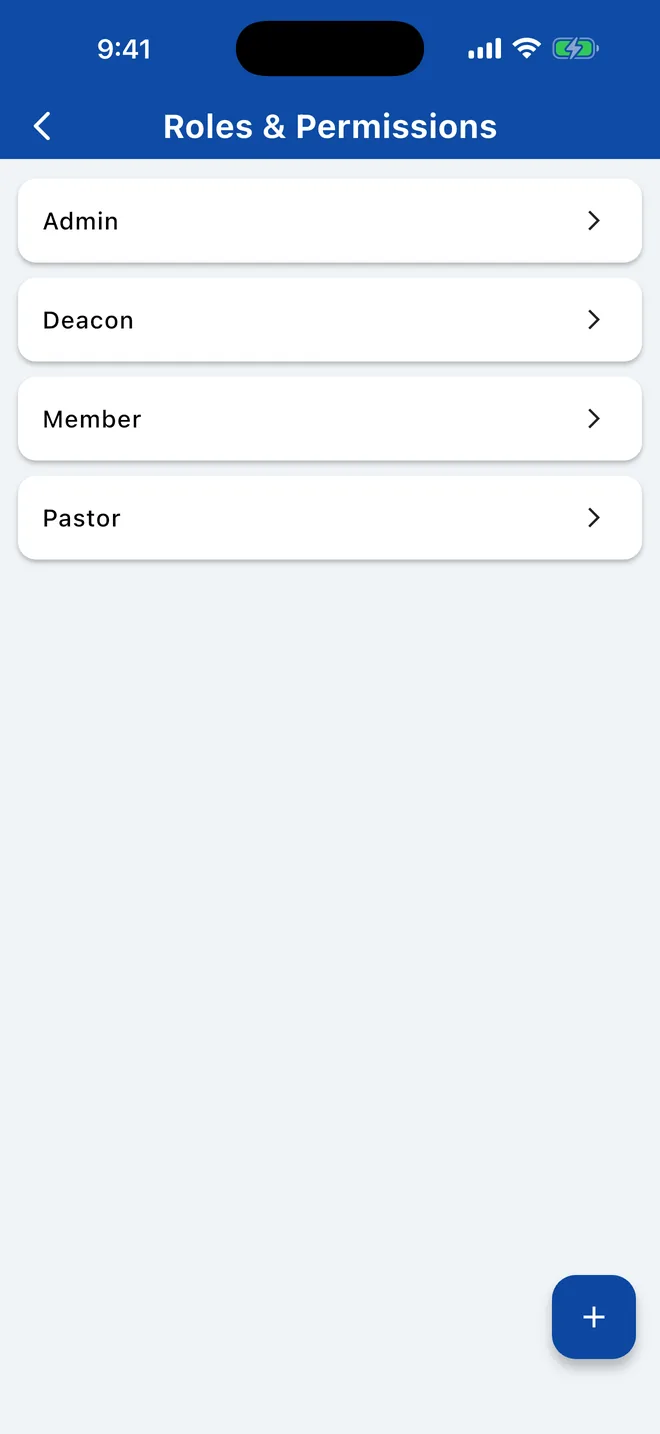
In the sidebar, open Users & Roles › Roles & Permissions.
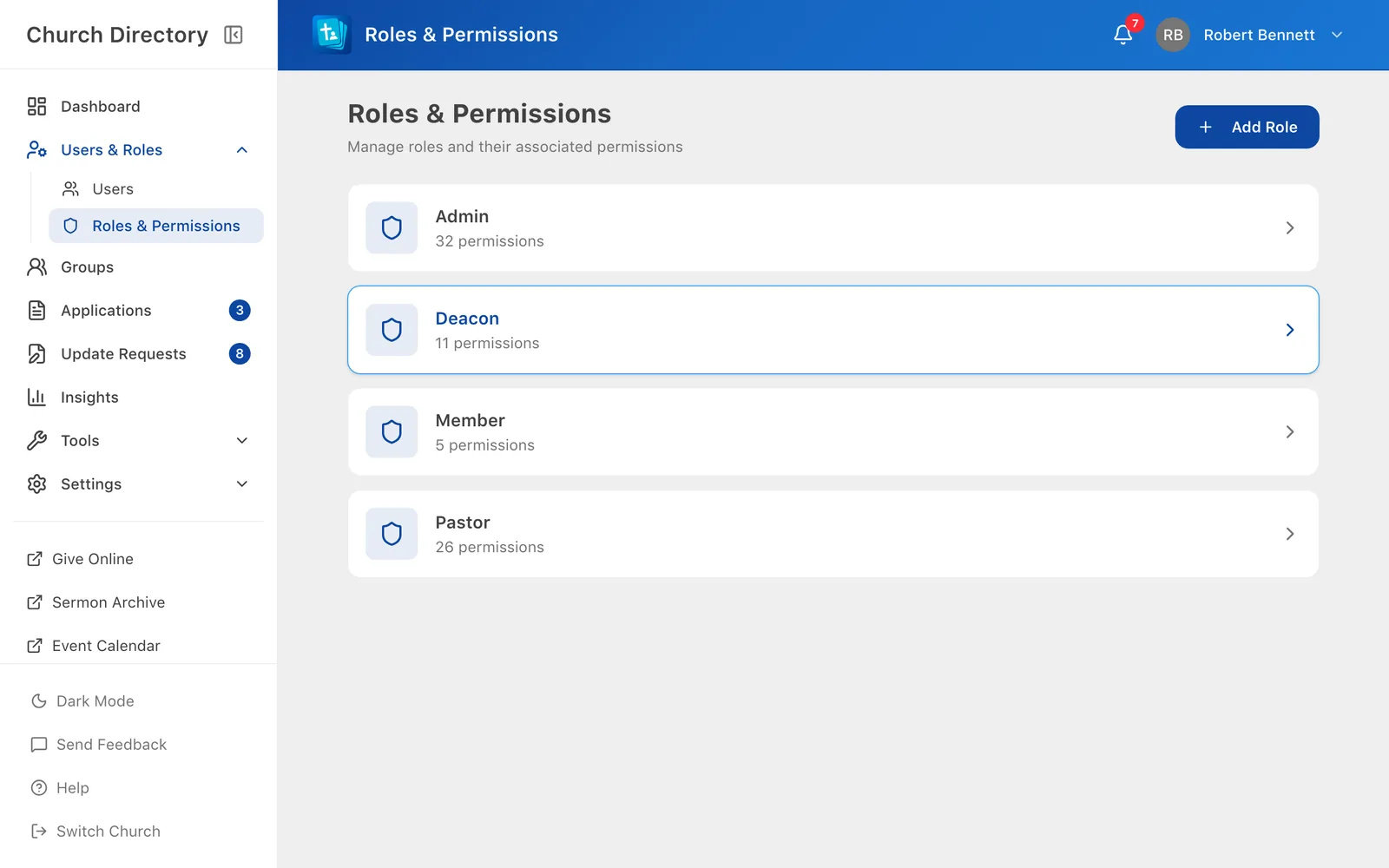
Open a role to see its permissions and the people who have it.
Create or change a role
- Choose Add New RoleAdd Role, or open a role and choose Edit.
- Name it, for example Pastor, Group Leader or Office Volunteer.
- Tick the permissions it should have, and save.
The Admin role can't be renamed, and the Admin and Member roles can't be deleted.
Give someone a role
Edit the person and tick roles in the roles section. Remember the Member role is what makes someone count as a church member.
Limit a permission to certain people
Some permissions can be scoped: instead of applying to everyone, they apply only to people you choose. For example, a youth leader could edit only the youth.
- In a role, open a permission that shows Configure scope.
- Choose All Members or Specific People. With specific people, search for people or pick a group to add all its members.
- Save.
What each permission does
| Area | Permissions |
|---|---|
| Using the app | Basic access (needed to sign in at all). |
| Seeing people | View members · view all people including non-members · view address · view birthday (always) · view public birthday info (only what people share) · view family · view employment · view previous church · view full info (including notes) |
| Changing people | Add · edit · delete · edit notes · request changes to own profile · request changes to others' profiles · approve profile update requests |
| Groups | View own groups · view all groups · add · edit any group · delete |
| Staff tools | Admin dashboard · insights · member applications (view, or manage) · action logs · bulk export · roles & permissions screen · app settings · admin tools (billing) |
Related Articles
Edit or remove people
Update someone's details, notes, groups or role, or remove them from the directory.
Managing PeopleWho can see what
Your church decides what each person can see through roles. Here's how that works and how to control your own birthday.
DirectoryView the app as someone else
Check exactly what a member sees before you change roles or answer a "why can't I see…" question.
Managing PeopleWas this article helpful?
Thank you for your feedback!